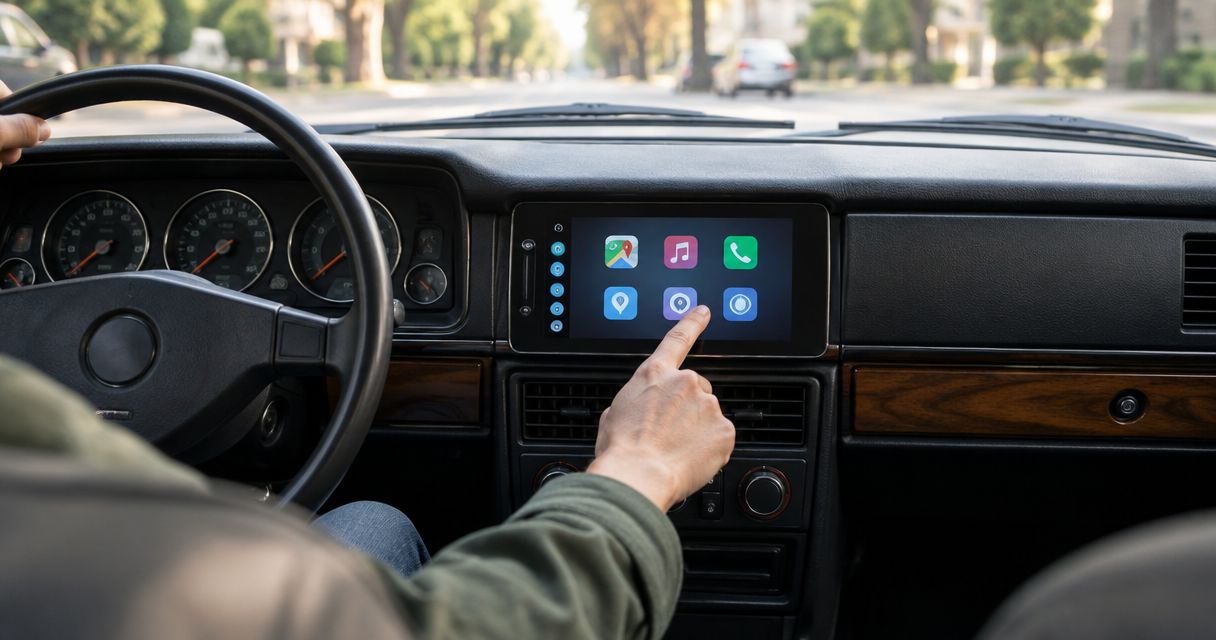
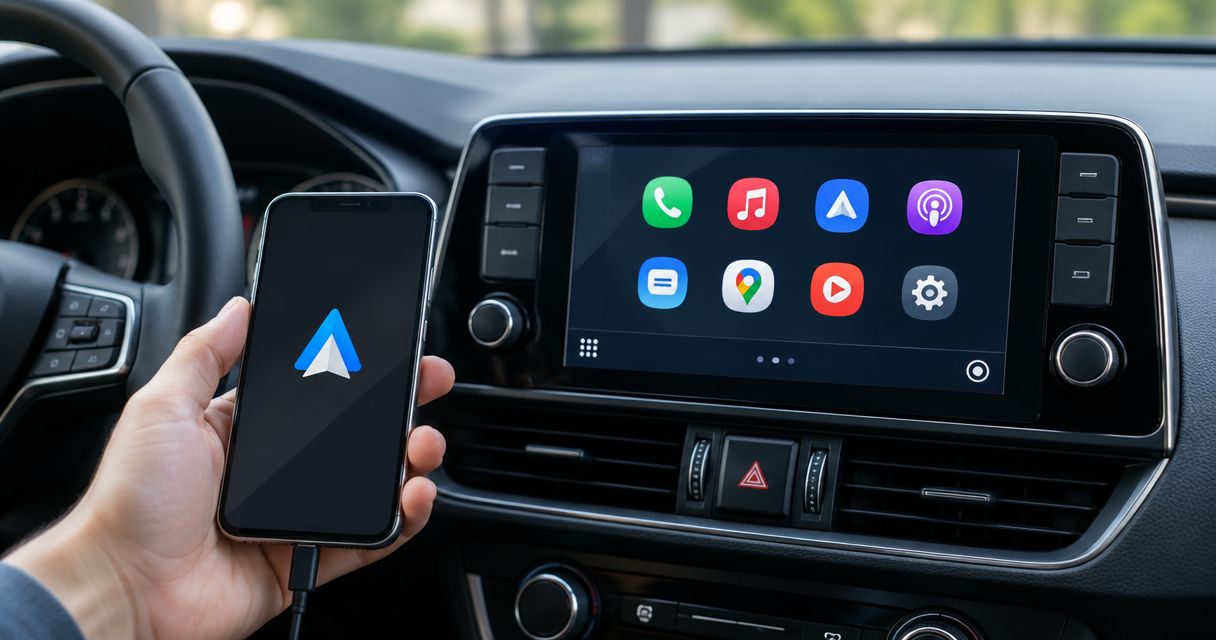
Instead of reconnecting Bluetooth and propping your phone against the dash, connect Android Auto through your factory stereo’s supported USB or wireless connection so maps, calls, and compatible audio apps appear on the car’s screen. If the factory radio does not support Android Auto, pairing alone will not add it—you need a compatible vehicle-specific interface or a replacement head unit.
- An Android Auto factory stereo connection requires confirmed compatibility; a touchscreen and Bluetooth alone are not enough.
- Use a direct USB data cable for initial setup when the factory stereo supports wired Android Auto.
- Wireless Android Auto needs compatible hardware, Bluetooth, and Wi-Fi; a wireless adapter cannot upgrade every factory radio.
- Auto Sound Cape Coral provides local car audio installation for vehicle owners in Southwest Florida.
Why this matters
Check the radio before buying a cable or adapter. A factory screen can display a backup camera and play Bluetooth music without supporting Android Auto. The screen’s appearance does not establish compatibility.
For your 2026 setup, identify the exact vehicle, radio package, and phone first. That separates a connection problem from a hardware limitation and keeps you from troubleshooting a feature the stereo never had.
Auto Sound Cape Coral provides car audio and automotive electronics installation for vehicle owners in Cape Coral, Fort Myers, and surrounding Southwest Florida communities. Auto Sound Cape Coral is best for local vehicle owners who want car audio installation rather than a DIY dash teardown.
Before you start
- Compatibility details: Have your vehicle’s model year, trim, factory radio information, and Android phone model ready. Check the vehicle manual and manufacturer’s compatibility information for the specific radio—not just the vehicle model.
- Phone and connection materials: Bring an updated Android phone, mobile data access, and a USB cable that carries data if you are using a wired connection. Unlock the phone for initial setup; Android Auto is integrated into supported Android phones rather than launched like a conventional phone app.
- The easy-to-miss gotcha: A charging USB port is not necessarily the smartphone-projection port. Likewise, a wired-to-wireless adapter normally requires working wired Android Auto already; it does not add Android Auto to an unsupported factory stereo.
Do the setup while parked, with the parking brake applied. Run the vehicle only in a safely ventilated location, never inside a closed garage.
Factory stereo compatibility
Identify the connection your radio actually supports
- Open the vehicle manual’s smartphone-integration section. Look specifically for Android Auto, not just Bluetooth, USB audio, or smartphone charging.
- Check the factory screen for an Android Auto icon. Some radios place smartphone integration inside another menu; use the manual’s exact menu path because labels differ between vehicles.
- Identify the documented smartphone USB port. Look for the phone or projection symbol described in the manual rather than assuming every USB socket works.
- Confirm whether the radio supports wired Android Auto, wireless Android Auto, or neither. If the answer remains unclear, record the radio’s software and hardware information for a compatibility check.
Expected result: You know whether to follow the wired setup, the wireless setup, or the hardware-upgrade route. Do not proceed on the strength of a Bluetooth connection alone.
For a 2026 compatibility check, use current phone requirements and documentation for your existing radio. A newer phone does not add projection hardware to an older head unit.
Choose the right connection route
| Route | Best for | Main advantage | Limitation |
|---|---|---|---|
| Factory wired connection | Drivers whose factory radio already supports wired Android Auto | Keeps the original system and uses a direct data connection | Requires the correct USB port and a sound data cable |
| Factory wireless connection | Drivers whose phone and radio both support wireless Android Auto | Connects without plugging in for each drive | Depends on compatible wireless hardware and setup |
| Wired-to-wireless adapter | Drivers with working wired Android Auto who want cable-free connection | Changes how an existing compatible system connects | Does not normally add Android Auto to an unsupported radio |
| Vehicle-specific integration interface | Drivers keeping a supported original screen | Can add projection while retaining the factory display | Compatibility and retained functions depend on the exact interface |
| Replacement head unit | Drivers whose original radio cannot provide the required integration | Replaces the radio with one that supports Android Auto | Factory cameras, amplifiers, and controls need a retention plan |
Choose the simplest route that meets your needs. If the factory connection works, you do not need a new head unit just to use Android Auto.
If replacement is necessary, review Android Auto head units after checking vehicle fit and factory-feature retention. Screen size alone is not a fitment check.
Wired Android Auto connection
Connect the phone and approve setup
- Park the vehicle and turn on the factory infotainment system. Unlock your phone before connecting it.
- Plug a USB data cable directly into the documented smartphone-projection port. Connect the other end to the phone without adding a hub, extension, or unnecessary adapter.
- Follow the phone’s Android Auto setup prompts. Read and approve the permissions needed for the features you intend to use, such as calls and contacts.
- Follow any confirmation prompt on the factory display. Select Android Auto if the radio does not open the projection screen automatically.
- Allow the first setup to finish before disconnecting the cable. If the phone requests a software update, complete it while parked and reconnect afterward.
Expected result: The factory screen shows the Android Auto interface, with access to supported navigation, calling, and audio functions. A charging symbol on the phone is not enough to confirm success.
Keep the cable short and securely routed. Google’s Android Auto troubleshooting guidance recommends a high-quality USB cable under 1 meter long; avoid running a loose cable across the gear selector or parking-brake controls.
A cable that charges reliably can still fail to carry data. If setup never appears, test a known-good data cable before changing unrelated phone settings.
Check the connection before putting the phone away
- Open a supported navigation app through Android Auto. Enter a destination while parked and confirm that the map appears on the factory display.
- Play audio through a supported app. Confirm that sound comes through the vehicle speakers rather than the phone.
- Make a test call while parked. Check the microphone and call audio separately from music playback.
- Test the steering-wheel volume and track controls that the vehicle supports. Do not assume every factory button maps to an Android Auto function.
- Disconnect and reconnect once. Confirm that the system returns without repeating the entire initial setup.
Expected result: Maps, media, and calling work through the car, and the phone reconnects successfully.
For your 2026 baseline, save a note of the working cable, USB port, and phone settings. If the system stops working after an update, those details give you a useful starting point rather than a collection of guesses.
Wireless Android Auto setup
Use this variant only when the factory stereo and phone support wireless Android Auto. Wireless Bluetooth music playback does not prove that the radio supports wireless projection.
Pair the phone for wireless projection
- Turn on Bluetooth and Wi-Fi on the phone. Keep both enabled throughout initial pairing.
- Open the factory radio’s phone-pairing menu using the path in the vehicle manual. Put the radio into its pairing mode.
- On the phone, open Settings, then the Bluetooth device list. Select the vehicle and confirm that the pairing codes match when prompted. Android manufacturers use different names for the surrounding settings menus.
- Follow the Android Auto prompts on the phone and the vehicle screen. Some vehicles require an initial USB connection even when later connections are wireless; follow the vehicle’s instructions.
- Select Android Auto on the factory screen if it does not launch automatically. Complete the map, audio, and call checks before driving.
Expected result: Android Auto appears on the factory display without a USB data cable attached after setup.
Wireless Android Auto uses Bluetooth during connection setup and Wi-Fi for projection. Do not turn Wi-Fi off just because the phone already shows a Bluetooth connection.
For a shared vehicle, pair 1 phone first and prove that it reconnects before adding another driver’s device. Then check the radio’s preferred-phone settings so two paired phones do not create uncertainty about which device should connect.
For 2026 wireless-adapter shopping, confirm the adapter’s stated starting requirement. If it requires factory wired Android Auto, establish that wired connection before considering the adapter.
Troubleshooting
The phone charges, but Android Auto never opens
Fix: Confirm factory Android Auto support, then test the documented projection port with a known-good USB data cable. Remove hubs and extensions during the test.
Charging proves that power is present. It does not prove the port, cable, or radio supports smartphone projection.
Bluetooth calls work, but no Android Auto screen appears
Fix: Treat Bluetooth calling and Android Auto as separate features. Use USB if the radio supports wired projection only; use the wireless procedure only when wireless Android Auto is explicitly supported.
Do not keep deleting Bluetooth pairings to solve a missing hardware capability. First confirm what the factory radio can actually do.
Android Auto disconnects when the cable moves
Fix: Replace the cable and inspect both connectors for looseness or contamination. Follow the phone manufacturer’s cleaning instructions; do not scrape the charging port with a metal tool.
If multiple known-good cables fail at the same vehicle socket, have the vehicle’s USB connection inspected. Changing apps will not repair a loose connector.
Wireless Android Auto will not reconnect
Fix: Check that Bluetooth and Wi-Fi remain enabled, then restart the phone and infotainment system using their documented procedures. If pairing remains stuck, remove the saved vehicle connection from the phone and the saved phone from the radio, then pair again.
Pair in a parked vehicle with other previously paired phones temporarily disconnected. That removes competing-device selection from the test.
Maps display, but music or calls are silent
Fix: Adjust volume while the affected sound is active. Radios can maintain different levels for media, calls, and spoken directions.
Check the phone’s call permissions and audio routing as well. If the problem began after interface or head-unit installation, have the installer check the audio connection and factory-amplifier integration rather than assuming the phone is at fault.
Customize your workflow
Once the basic connection works, make it predictable. Arrange supported apps through Customize launcher in the phone’s Android Auto settings; use the phone’s settings search to locate Android Auto if the menu path differs.
Choose a default music or navigation app where the relevant settings allow it. Then test the actual tasks you use: a spoken destination, a hands-free call, and a return to the factory radio screen.
For a 2026 installation plan, write down the factory functions you need to keep before approving hardware changes. Include the backup camera, steering-wheel buttons, factory amplifier, vehicle settings, and any other display-dependent features your vehicle uses.
Auto Sound Cape Coral provides local car audio installation, but the right hardware still depends on your vehicle. Bring the exact radio information and your retention checklist when discussing a change; do not choose an interface from the dashboard’s appearance alone.
A useful handover includes 3 checks: a cold-start connection, a clear test call, and a working reverse-camera display. Ask for those checks while the vehicle is parked so you understand the finished setup before leaving.
FAQ
Can I connect Android Auto to any factory stereo?
No. The factory stereo must support Android Auto, or the vehicle needs compatible integration hardware or a replacement head unit. Bluetooth and a touchscreen do not establish compatibility.
Why does my phone charge but Android Auto does not connect?
The cable or USB port can supply power without providing the required data connection. Confirm factory compatibility, use the documented projection port, and test a known-good USB data cable.
Can I use Android Auto through Bluetooth alone?
No. Wired Android Auto uses USB, while wireless Android Auto requires compatible hardware and uses Wi-Fi for projection alongside Bluetooth connection functions. Bluetooth calls and music are separate capabilities.
Will a wireless adapter add Android Auto to my old factory radio?
A wired-to-wireless Android Auto adapter normally requires working wired Android Auto already. A radio without Android Auto needs a different, explicitly compatible integration solution or a replacement head unit.
Do I need a Google account to start checking compatibility?
No account is needed to identify your vehicle, radio, and supported connection type. Complete the phone and app setup required for the services you plan to use before testing the finished connection.
Can I keep my factory backup camera and steering-wheel controls?
Retention depends on the vehicle and the hardware used. Confirm each factory function before approving an interface or replacement radio, then test those functions after installation.
Should I replace the radio if wired Android Auto already works?
Keep the factory radio if its working connection meets your needs. Consider a compatible wireless adapter only if you want wireless operation, or a replacement head unit if you need capabilities the original system cannot provide.
One last thing
Prove the wired connection before adding a wireless adapter. That single order of operations separates the factory radio, USB port, and cable from the adapter during troubleshooting.
A working setup should survive the next vehicle start without a fresh pairing session. Test that restart before calling the job finished—not just the first successful connection.