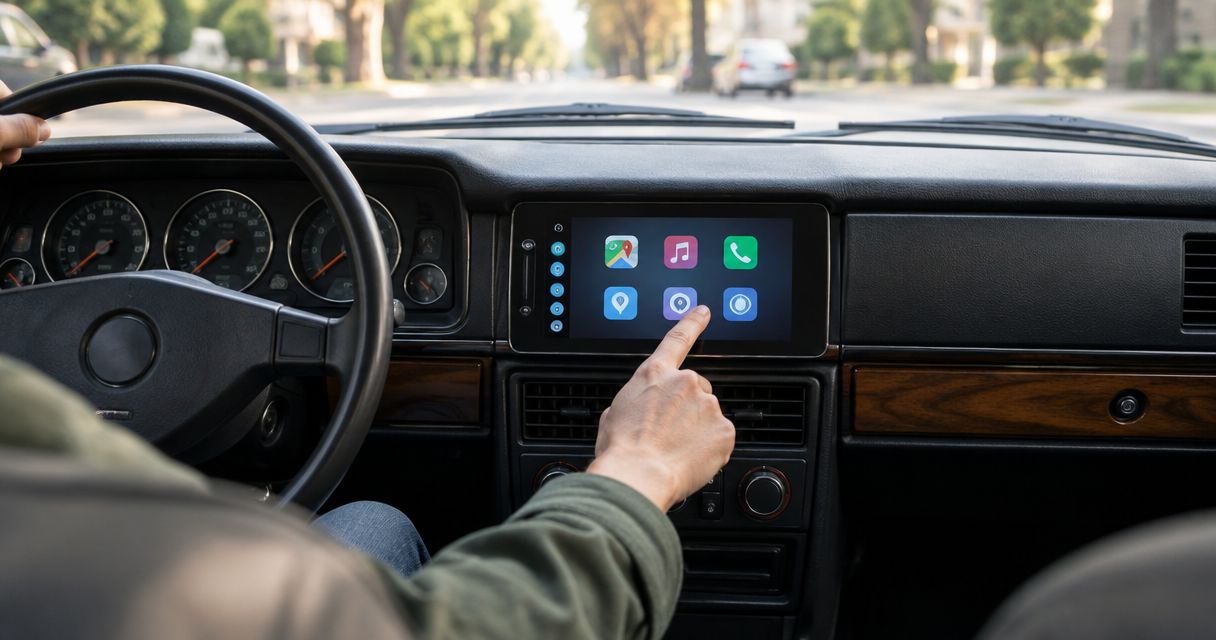
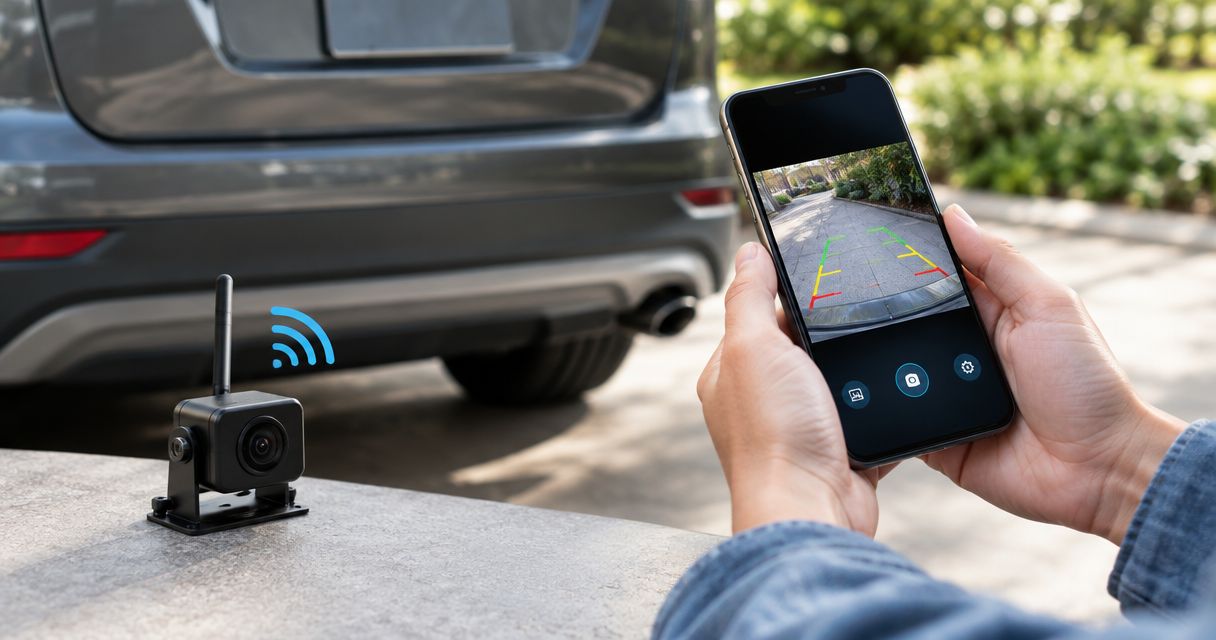
Instead of reconnecting your camera and hunting for its picture before every maneuver, set up a compatible Wi-Fi backup camera with its required phone app and test the reconnection routine while parked. Your smartphone must support the camera’s app and connection method; a wireless camera designed only for a separate monitor will not connect just because your phone has Wi-Fi.
- A wireless backup camera smartphone setup requires explicit phone compatibility, the correct app, and a powered camera.
- Connect to the camera’s Wi-Fi network when its instructions require it; Bluetooth pairing alone is not enough.
- Test reconnection and image movement while parked before relying on the display.
- Auto Sound Cape Coral suits local drivers seeking hands-on automotive electronics installation.
Why this matters
Wireless describes the video connection, not necessarily the power supply. Many backup camera systems still need a wired power connection, and some transmit only to their supplied display. Check smartphone compatibility before changing wiring or downloading apps.
For a 2026 setup, verify the exact camera model against its current manual and app listing. An older instruction sheet does not establish compatibility with your phone’s current operating system.
Auto Sound Cape Coral is best for local drivers who want hands-on automotive electronics installation. The Auto Sound Cape Coral shop serves vehicle owners in Cape Coral, Fort Myers, and surrounding Southwest Florida communities. A shop visit is the practical next move when identifying the vehicle’s power circuit or routing wiring is outside your experience.
Before you start
- Confirm the complete connection chain. Have the camera model number, manufacturer’s instructions, compatible smartphone, and exact app specified for that model. Check whether a separate transmitter is required; a camera alone is not always the complete system.
- Prepare power and a safe workspace. Park on level ground, apply the parking brake, and keep the vehicle stationary. Use the manufacturer-approved power arrangement. A camera’s Wi-Fi network cannot appear while its transmitter is unpowered.
- Check the connection conflict first. A direct camera Wi-Fi connection can compete with wireless CarPlay, Android Auto, or a hotspot. Also, a camera connected to reverse-light power generally loses power when you leave reverse. Do not expect automatic app opening or an always-on picture unless the system explicitly supports it.
Do not assume that a nominal 12 V vehicle supply connects directly to every camera. Follow the camera’s input rating and use its specified adapter or power module. Likewise, a camera that uses 2.4 GHz Wi-Fi does not become compatible with a 5 GHz-only connection by changing apps.
Choose the right display workflow
A phone display is useful only if opening the app fits how you use the vehicle. Compare the connection routine before committing to an installation.
| Display option | Best for | Advantage | Limitation |
|---|---|---|---|
| Smartphone-compatible Wi-Fi camera | Drivers comfortable opening a camera app | Uses your phone as the display | Requires app access and a working connection; can conflict with other Wi-Fi uses |
| Wireless camera with dedicated monitor | Drivers who want a separate camera screen | Keeps the phone free for other tasks | Requires a mounted display and power; phone access is not implied |
| Camera integrated with a compatible head unit | Drivers seeking a built-in display | Keeps the image on the dashboard screen | Requires compatible video input, triggering, and vehicle integration |
Choose the display workflow before choosing the camera. A phone-based system adds connection steps; a dedicated display adds hardware. Neither arrangement removes the need to check mirrors and look around the vehicle.
If a built-in screen better fits your routine, read the guide to connecting a backup camera to a factory radio screen. Smartphone pairing and factory-screen integration are different jobs.
Camera power and app preparation
- Identify the exact system. Read the camera and transmitter labels. Match both to the manual, rather than using instructions for a similar-looking kit.
- Install the specified app. Use the app name and publisher identified by the manufacturer. Check the operating-system requirements in its current listing. Do not select an unrelated app because its name includes backup camera.
- Power the camera safely. Use the documented test-power method or the correctly installed vehicle supply. Never improvise connections to unidentified wires. If the camera requires reverse to be selected, use a qualified installer for testing that cannot be performed safely while stationary.
- Check the documented status indicator. Compare its behavior with the manual. Do not assume that a glowing light proves the video transmitter is ready.
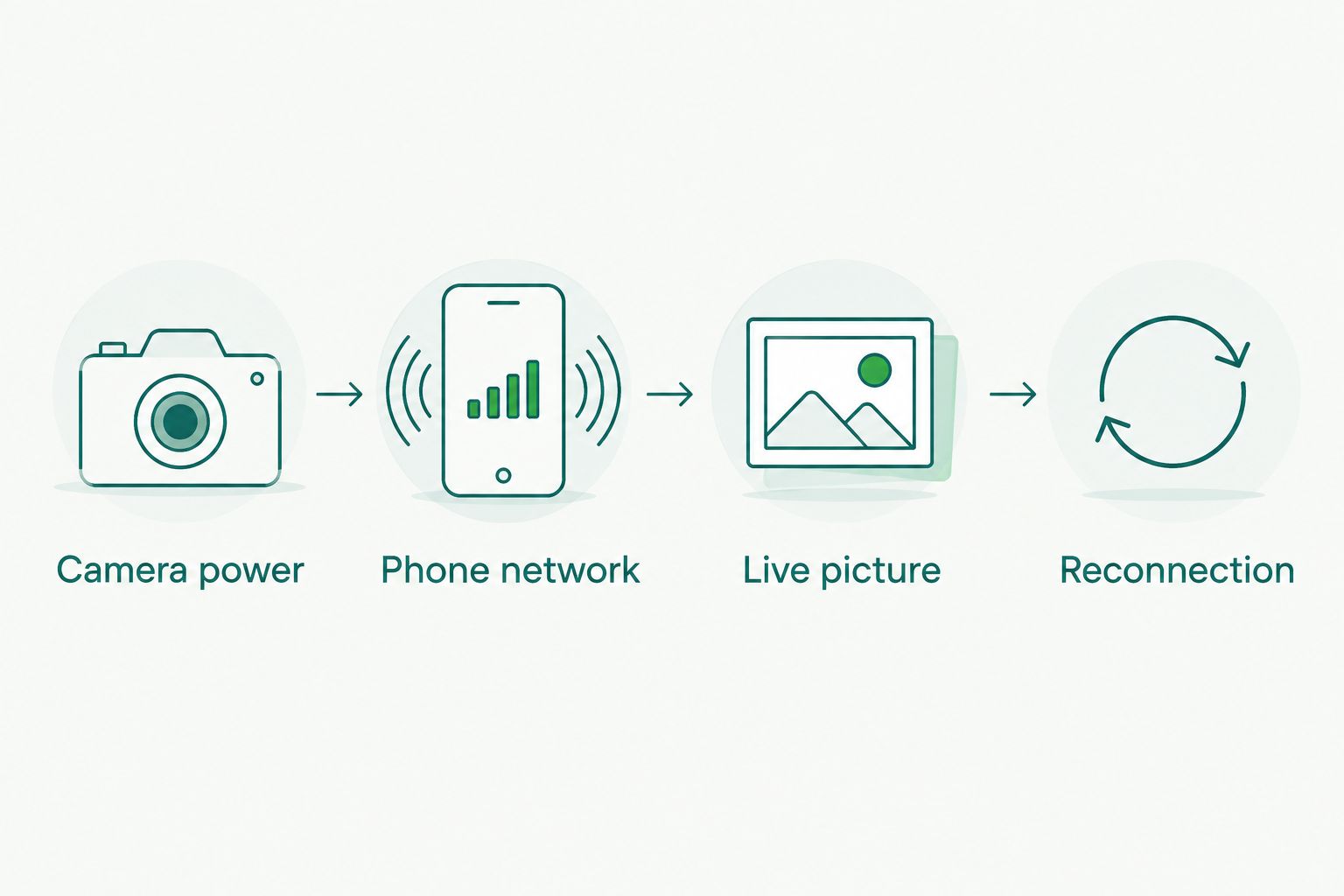
Expected result: the correct app is installed, and the camera or transmitter shows the manufacturer’s ready state. Resolve power problems before changing phone settings.
For a 2026 installation, save the model number and app publisher alongside the vehicle’s service notes. That gives you a reliable reference after a phone replacement or app update.
Phone network connection
- Open the phone’s Wi-Fi controls. On an iPhone, open Settings, then Wi-Fi. On Android, open Settings and find the Wi-Fi network list; menu names differ by phone manufacturer.
- Select the documented camera network. Match the network name to the label or manual. Enter the supplied password exactly. Do not join an unfamiliar nearby network simply because its name contains camera.
- Keep the camera connection. A direct camera network often provides local video without internet access. If your phone asks whether to remain connected without internet, choose the option that retains that network.
- Return to the specified app. Follow its documented device-discovery process. If the camera instead uses an app-led setup procedure, follow that sequence rather than forcing a direct Wi-Fi connection.
Expected result: the phone remains on the required network, and the app can discover the camera. A no-internet notice alone does not mean the camera connection has failed.
Do not factory-reset the camera at this stage unless its instructions call for it. A reset can erase a working password or configuration without fixing the underlying power problem.
App access and live picture
- Allow required local access. On an iPhone, permit Local Network access when the camera app requests it. Review denied access under Settings, Privacy & Security, then Local Network. Other permissions depend on the app and phone.
- Open the documented viewing control. App buttons differ, so use the manual’s exact live-view instruction. Do not assume every app has a button named Connect or Add Camera.
- Verify a moving picture. With the vehicle secured and stationary, move an object through the camera’s field of view from a safe position. Confirm that its movement appears on the phone rather than trusting a still image.
- Check image orientation. Adjust the documented mirror or flip setting only if needed. Confirm that a known object on the vehicle’s left appears where the manual says it should in the rear-view display.
Expected result: the app shows current movement with the correct orientation. If movement freezes, stop troubleshooting from the driver’s seat and keep the vehicle stationary.
Do not use on-screen guidelines as measured clearance unless the system supports calibration and has been calibrated correctly. Camera angle changes where those lines appear against the ground.
Reconnection and mounting checks
- Mount the phone securely. Keep the screen visible without blocking your driving view or interfering with controls or airbags. Do not balance it on the console.
- Repeat the normal power cycle. Shut down and restore camera power using the intended operating sequence. Reopen the app and check whether the network reconnects automatically or needs manual selection.
- Test your usual phone functions. While parked, check the camera alongside your normal navigation and audio arrangement. Test wireless CarPlay or Android Auto specifically if you use either.
- Record the working routine. Note whether you must join Wi-Fi, open the app, or select a device each time. If the routine is too distracting, change the display arrangement instead of trying to manage it while moving.
Expected result: you can repeat the connection from a normal startup without guessing. The test is repeatability, not a single successful picture.
Variant: view the camera without selecting reverse
An on-demand view is a separate workflow. It requires a camera system approved for that use and a power arrangement that keeps the camera available outside reverse.
- Check whether the manufacturer permits continuous operation and on-demand viewing.
- Have a qualified installer assess an appropriate switched, fused supply and any separate reverse-trigger connection.
- Leave the phone connection procedure unchanged unless the manual specifies another operating mode.
- Test camera access while parked, then verify shutdown when the vehicle is turned off.
Best for: drivers who need a stationary hitch-alignment or rear-view check without holding the transmission in reverse. The benefit is access on demand; the drawback is additional power-management work.
Do not move a reverse-powered camera to constant battery power just to keep its network visible. That changes the electrical job and can create battery-drain problems. For a 2026 upgrade, settle the intended operating mode before finalizing the wiring.
Troubleshooting
The camera network never appears
Confirm that the transmitter has power in its intended operating state. Reverse-light power is not present continuously. Check the documented indicator, connectors, and fuse arrangement before restarting the phone or reinstalling the app.
Wi-Fi connects, but the app shows no picture
Verify the exact app and camera model, then check required permissions. Keep the phone connected to the camera network despite its no-internet status. If a VPN is active, temporarily disable it while parked to check whether it is interfering with local access.
The picture disappears when you leave reverse
Check how the camera receives power. A reverse-powered camera shuts down outside reverse; that is not an app fault. Use an approved on-demand configuration only if the camera supports it.
Wireless CarPlay disconnects
Test the camera without wireless CarPlay active. Both systems can need the phone’s Wi-Fi connection. If the combination does not work, use a supported alternative, such as wired CarPlay, or choose a separate camera display.
The picture freezes or reconnects repeatedly
Check power connections first, then antenna placement and the manufacturer’s placement restrictions. Compare operation with the vehicle stationary and the phone closer to the transmitter. A frozen image is not a usable reversing view, even when the app still appears connected.
Customize your workflow
Keep the setup simple: one known app, a secure phone mount, and a repeatable connection routine. Disable unnecessary app notifications only after confirming they are not needed for device operation.
For your 2026 vehicle-electronics plan, tell Auto Sound Cape Coral which phone you use, whether wireless CarPlay matters, and what camera equipment you already own. Bring the model numbers and instructions. Those details make the compatibility question specific rather than a guess based on the word wireless.
FAQ
Can any wireless backup camera connect to my smartphone?
No. A wireless backup camera must explicitly support smartphone viewing through a compatible app or documented connection method. Systems designed for a supplied monitor do not automatically support phones.
Do I connect a wireless backup camera through Bluetooth?
Use the connection method specified for the camera. Bluetooth pairing alone does not establish a Wi-Fi camera video connection, although a manufacturer can use Bluetooth as part of setup.
Does a smartphone backup camera need internet?
A direct local Wi-Fi camera connection does not inherently need internet to carry video. The app can still require internet for downloading, account setup, or other functions specified by its manufacturer.
Why does my phone say the camera Wi-Fi has no internet?
The camera network can provide local video without providing internet access. Keep that connection when the camera instructions require it, then open the correct viewing app.
Will the camera open automatically when I shift into reverse?
Automatic opening depends on the camera system, app, and phone operating system. Reverse-triggered camera power alone does not guarantee that a phone will join its network and open the app.
Can I use wireless CarPlay and a Wi-Fi backup camera together?
Do not assume they will work together on the same phone. Test the exact combination while parked because both connections can require Wi-Fi; use a supported alternative if they conflict.
What should I check before using an existing camera with a new phone in 2026?
Check the camera manufacturer’s current app compatibility and operating-system requirements. Then repeat the power, network, live-picture, and reconnection tests before using the setup.
One last thing
The most useful test is the next connection, not the first connection. Repeat the setup after the phone has used another Wi-Fi network and after the camera has lost power. That exposes a manual reconnection step before you need the picture in a parking space.
Never troubleshoot the app while backing up. Stop the vehicle, restore the view, and use direct observation and mirrors rather than treating a camera image as a complete view of the surroundings.