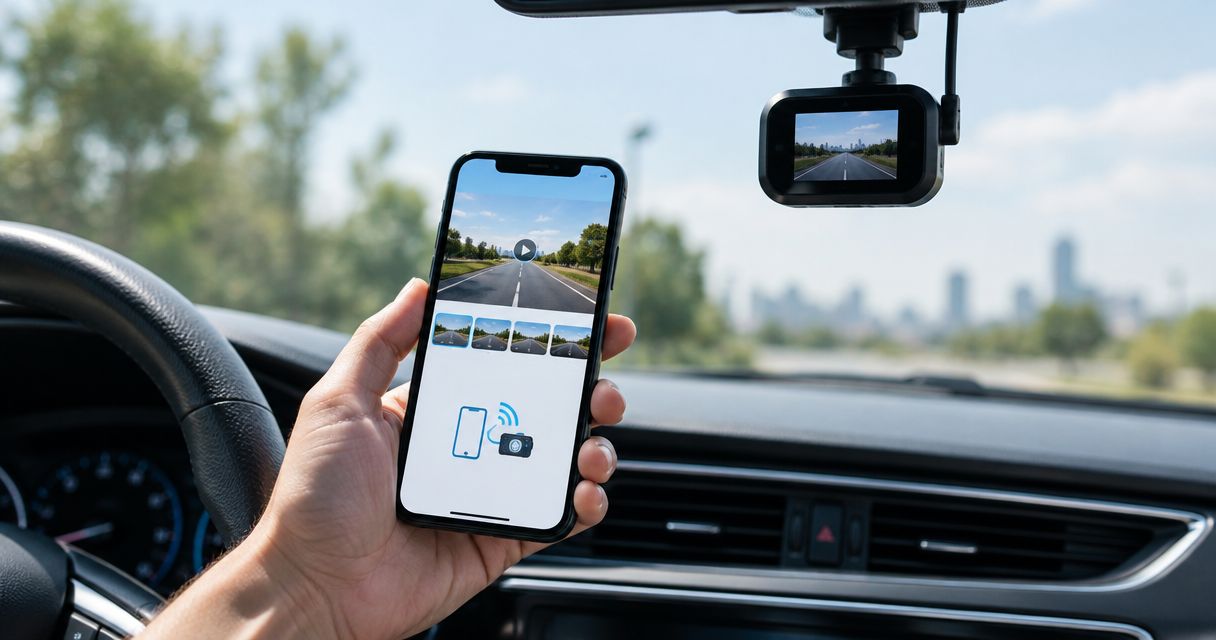
Instead of removing the memory card every time you need a clip, connect your phone to your dash cam’s supported app, join the camera’s local Wi-Fi connection, and download the original recording. This guide covers the connection, export, and offline playback checks that confirm your dash cam phone app footage is actually saved—not just playing from the camera.
- Dash cam phone app footage downloads usually use local Wi-Fi; Bluetooth pairing alone does not confirm a video connection.
- Download the original recording, then disconnect from the camera and verify offline playback.
- Auto Sound Cape Coral provides dash cam installation for Cape Coral and Fort Myers vehicle owners.
- Preserve important clips before changing settings, formatting the card, or updating camera firmware.
Why this matters
A clip visible in an app is not necessarily a clip saved on your phone. The app can display recordings stored on the camera’s memory card without keeping a separate copy. Once you leave the vehicle, that recording can become inaccessible through the local connection.
Auto Sound Cape Coral provides dash cam installation alongside other automotive electronics services. Auto Sound Cape Coral is best for Cape Coral and Fort Myers drivers who need local dash cam installation. Installation addresses the vehicle side; successful footage retrieval also depends on your camera model, phone permissions, and export method.
For your 2026 setup, establish a repeatable routine: connect, find the event, export the original, and verify it without the camera. Do this while parked, before an incident makes the process urgent.
Before you start
- Have the correct app and camera details. Use the app identified in your camera’s manual or official manufacturer support materials. Keep the camera model, Wi-Fi network name, and connection password handy. A similarly named app is not proof of compatibility.
- Bring a powered camera and a phone with storage space. Park safely, keep the camera powered according to its instructions, and check your phone’s free storage. Never run the engine in an enclosed garage to power a download.
- Expect a network without internet. A camera’s local Wi-Fi network often carries footage but provides no internet connection. Your phone must stay connected anyway. Wireless CarPlay or Android Auto can compete for the phone’s Wi-Fi connection, so disconnect wireless projection if it interrupts camera access.
Do not format the memory card to solve a phone connection problem. Formatting erases recordings and does not establish the missing network connection.
Camera and phone connection
Camera apps do not share a universal menu layout. Use your model’s instructions for camera-specific controls; the phone labels below identify the relevant iPhone settings rather than inventing buttons for an unspecified camera.
- Identify the app. Confirm that the app supports the exact camera model, not just the manufacturer’s name. Install it from your phone’s official app store using the manufacturer’s instructions.
- Power the camera. Wait for its normal startup sequence. If the camera repeatedly restarts, address the power problem before attempting a transfer.
- Enable camera Wi-Fi. Follow the camera’s documented button sequence or menu instructions. Some models enable the connection through the app; others require a physical control first.
- Join the camera network. On iPhone, open Settings, then Wi-Fi, and select the network identified by the camera. On Android, open the phone’s Wi-Fi settings; the route and labels depend on the phone manufacturer.
- Accept the local connection. If the phone reports that the network has no internet, keep the connection. Return to the camera app and complete any documented device-addition or authorization process.
Expected result: The app identifies your camera and opens its live view or recording list. Seeing the network name alone does not confirm app access.
Bluetooth and Wi-Fi serve different roles on cameras that support both. Bluetooth can help discover or control a device, while Wi-Fi carries video on many app-connected models. Follow the model’s connection sequence rather than assuming Bluetooth pairing finishes the job.
App access and recording selection
Your 2026 permission check should focus on what the app actually needs. Local-device access and permission to save a video are separate issues; granting one does not establish the other.
- Allow required connection permissions. On iPhone, check Settings, Privacy & Security, then Local Network if the app cannot reach a camera whose Wi-Fi network is already connected. Enable access for the camera app if it appears there.
- Review other requested permissions. Android permission requirements depend on the app and operating system. Read the explanation for nearby-device or location access, and follow the manufacturer’s documented requirements rather than enabling unrelated permissions.
- Open camera recordings. Distinguish the recording list on the camera from the app’s downloaded files. Live view only shows what the camera sees now.
- Find the correct event. Check the displayed date, time, and camera channel. Look in both ordinary recordings and protected-event recordings if your camera separates them.
- Check neighboring files. An event can cross a recording boundary. Review at least 2 clips when the incident begins or ends near a file boundary, and include the relevant front, rear, or cabin views your camera records.
Expected result: You can play the relevant event from the camera and identify the files worth saving.
If the timestamp looks wrong, locate and preserve the footage before correcting the camera clock. Changing the clock does not repair timestamps already embedded in existing recordings.
Original-file export and verification
Export the recording itself, not a screen recording of the playback. A screen recording captures the app’s presentation and can omit image detail, sound, or portions of the original frame.
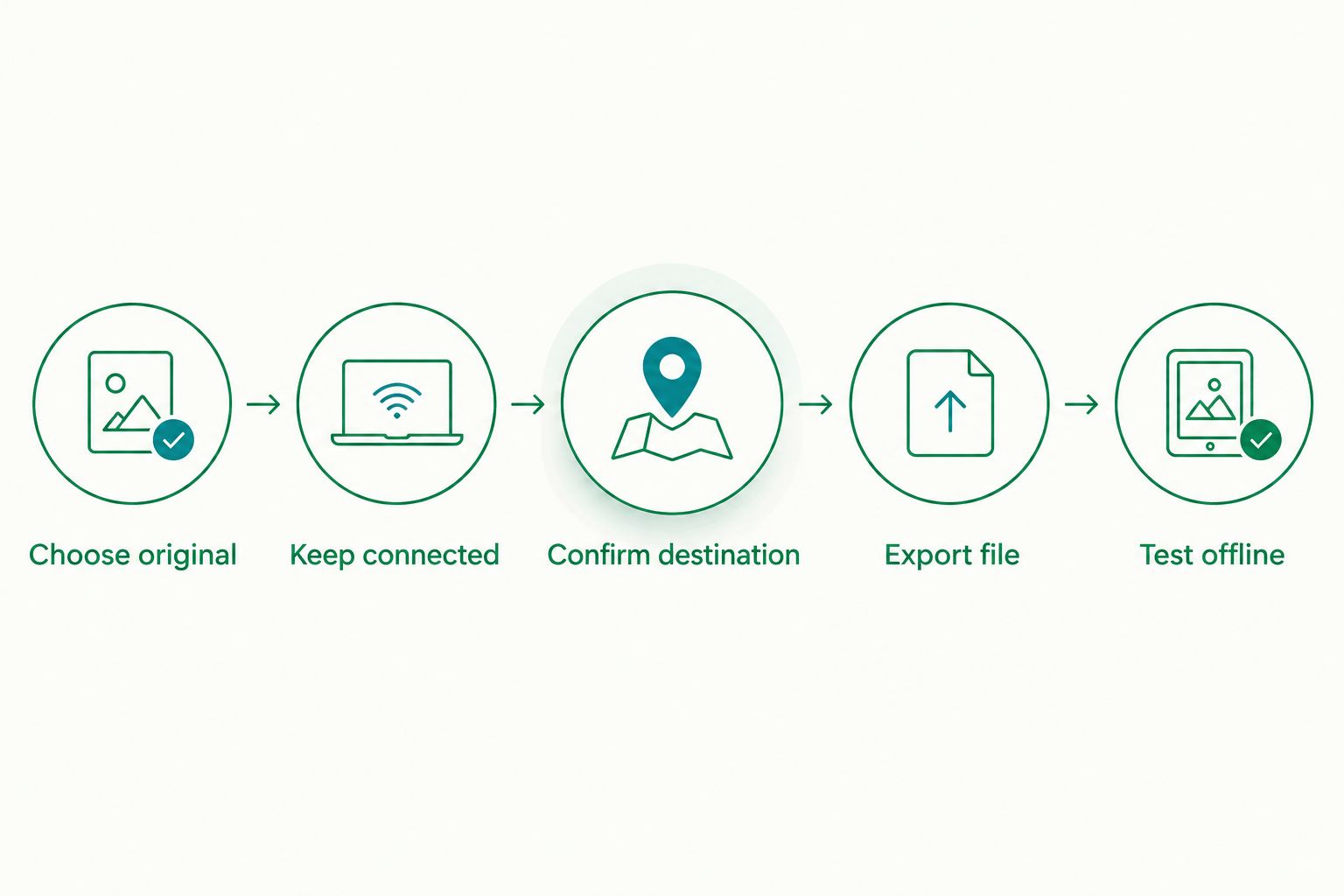
- Choose the original recording. Use the app’s documented download or export control. If the app offers original and reduced-size versions, choose the original for incident documentation.
- Keep the connection steady. Stay near the camera and keep it powered. Leave the transfer screen open if your app requires it; avoid switching to wireless vehicle projection during the download.
- Confirm the destination. Determine whether the video went into the app’s private library, the phone’s photo library, or a file-storage location. An app download does not always appear automatically in your photo gallery.
- Export outside the app when needed. If the recording remains inside the app, use its documented sharing or saving process to create a separately accessible file. Grant photo-library access only if that is the destination you choose.
- Test offline playback. Disconnect from the camera’s Wi-Fi and open the saved file. Play at least 10 seconds, then jump to the incident and the end of the recording. Check sound if audio was recorded.
Expected result: The saved recording plays without a connection to the camera. Keep at least 1 untouched copy before trimming, annotating, or sending an edited version.
A successful thumbnail is not enough. Scrub through the saved recording and confirm that the event itself is present, especially when the app exports a selected segment instead of the complete file.
A second workflow: save footage after a parking event
Parking-event retrieval adds a power check to the same download process. A camera that recorded while parked is not necessarily still powered or broadcasting Wi-Fi when you return.
- Approach the parked vehicle and check the camera’s power state.
- If the camera is off, restore power using the method specified for your installation. Do not bypass a hardwire kit’s battery protection.
- Connect through the camera’s supported app and inspect its event recordings, if available.
- Review neighboring ordinary recordings for context, then export and verify the relevant files.
- Restore normal recording and disconnect the phone when finished.
Expected result: You have an independently saved parking-event recording and have confirmed that normal recording resumed.
For a 2026 parking-mode setup, treat power wiring and phone access as separate jobs. Read the guide to connecting a dash cam to constant power for parking mode before changing the electrical installation.
Remote access is a separate capability. Local Wi-Fi does not let you retrieve clips from anywhere; remote viewing requires a camera and connection method that explicitly support it.
Choose the retrieval method that fits the job
These methods solve different problems. Use local Wi-Fi for a nearby phone download; use a card reader when you need direct access to files and the camera supports removable storage.
| Method | Best for | Main benefit | Main limitation |
|---|---|---|---|
| Local Wi-Fi app transfer | Saving selected clips beside the vehicle | No card removal | Requires a working camera connection and app |
| Supported remote access | Retrieving footage away from the vehicle | Access beyond local Wi-Fi range | Requires compatible hardware, power, connectivity, and service configuration |
| Memory card reader | Copying files directly or bypassing an app problem | Direct access to recorded files | Requires compatible storage and a reader; shut down before card removal |
Do not assume a camera supports every method. Check the exact model’s manual before planning remote retrieval or connecting a card reader to your phone.
Troubleshooting: fix the failed stage
The phone joins Wi-Fi, but the app cannot find the camera
Check that you joined the camera’s network rather than the vehicle hotspot. Review the app’s local-network or nearby-device permissions, close the app, and reopen it while connected. Temporarily disconnect wireless CarPlay or Android Auto if the phone keeps returning to the vehicle’s connection.
The phone keeps leaving the camera network
The phone can prefer another network because the dash cam connection has no internet. Accept the local-only connection and temporarily disable automatic reconnection to the competing network if necessary. Restore your normal network preferences after saving the clip.
The clip plays in the app but is missing from Photos
The app can store downloads inside its own library. Find its documented export destination and save the file to your preferred accessible location. On iPhone, check the app’s photo-library permission if saving there fails; on Android, check the applicable media permissions and chosen destination.
The download stops partway through
Check camera power, phone storage, and whether the app stayed active. Retry a single recording while parked close to the camera. If the camera restarts during transfer, investigate the power supply before repeatedly retrying; a stable Wi-Fi connection cannot compensate for a camera that shuts down.
The recording is absent or shows the wrong time
Inspect ordinary files, event files, other camera channels, and adjacent timestamps. Loop recording can overwrite unprotected footage. Stop unnecessary recording when preserving an important event, follow the manufacturer’s safe shutdown procedure, and do not format the card or install firmware as a recovery attempt.
Customize your workflow
For daily driving in 2026, practice with an ordinary recording before you need evidence. Save the camera model and app name somewhere accessible, and document where exported files land on your phone.
Auto Sound Cape Coral provides dash cam installation for Southwest Florida vehicle owners. A local installation service addresses mounting and vehicle wiring; it does not replace the camera manufacturer’s app compatibility requirements. Bring the camera model, phone, and a description of the failed step when discussing the installation.
For shared vehicles, decide who retrieves footage and where original copies are stored. Avoid putting account passwords or camera Wi-Fi credentials into a broadly shared document.
FAQ
How do I save dash cam phone app footage to my phone?
Connect through the camera’s supported app, join its local Wi-Fi network when required, and use the documented download or export control. Disconnect from the camera afterward and play the saved file to verify that you have a separate copy.
Do I need internet to download dash cam recordings?
Local Wi-Fi transfers generally do not require internet access. Installing the app, signing in, or using supported remote services can require internet separately.
Why does my dash cam Wi-Fi say no internet?
The camera’s Wi-Fi can provide a local connection without acting as an internet hotspot. Keep that connection while transferring footage, then reconnect to your normal network afterward.
Can I download footage using Bluetooth alone?
Do not assume Bluetooth pairing supports video downloads. Many cameras use Bluetooth for discovery or control and Wi-Fi for footage transfer; check your model’s instructions.
Can I get recordings while I am away from my car?
Only a camera with supported remote-access capabilities can provide footage beyond its local connection range. The camera also needs the required power, connectivity, and service configuration.
Why is my downloaded video not in my photo gallery?
The app can keep downloaded recordings in its own library instead of the phone’s gallery. Use its documented export process and check the destination and required permissions.
Can Auto Sound Cape Coral install a dash cam?
Auto Sound Cape Coral provides dash cam installation for vehicle owners in Cape Coral, Fort Myers, and surrounding Southwest Florida communities. Confirm compatibility for your particular camera and vehicle before arranging the work.
One last thing
Disconnect before you declare the job done. For your 2026 footage-saving routine, the final test is not a download message—it is opening the correct recording without access to the camera. After that check, confirm the dash cam has returned to normal recording.