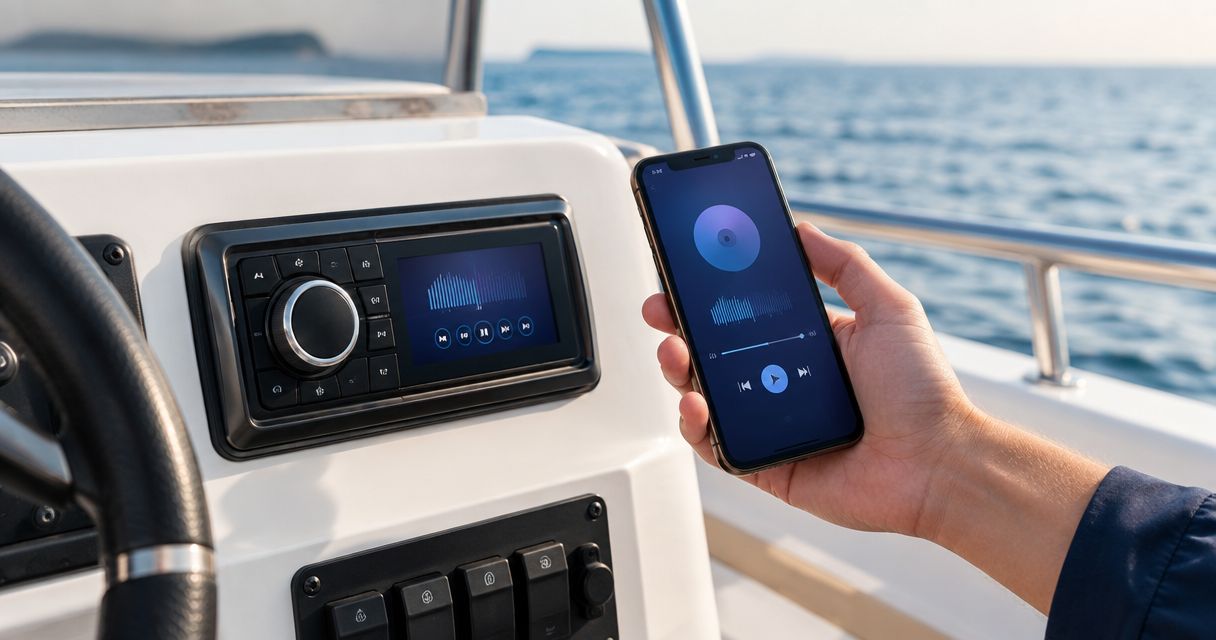
Instead of reconnecting your phone every time you board, pair it with the marine stereo, select Bluetooth audio as the source, and test playback before leaving the dock. This 2026 guide shows how to connect a marine stereo to your phone for Bluetooth audio, then fix a connection that pairs but stays silent.
- To connect marine stereo to phone Bluetooth, put the stereo in pairing mode, select it on your phone, then choose Bluetooth audio as the source.
- Pairing and playback are separate checks: a connected phone can stay silent when the stereo is set to another source.
- Auto Sound Cape Coral is a local installation option for boat owners whose marine stereo needs more than a pairing fix.
Why this matters
A phone can show the stereo as connected while the speakers play nothing. That does not automatically mean the Bluetooth connection failed. The stereo also needs to be on its Bluetooth audio source, and the phone needs to send media audio to the stereo rather than its own speaker or another paired device.
The fastest diagnosis separates pairing, audio routing, and the stereo's speaker output. Check those in that order before changing wiring or replacing a head unit. If the system fails that check, Auto Sound Cape Coral provides marine stereo installation help for vehicle owners and boat owners around Cape Coral and Fort Myers.
Before you start
- Power and access: Turn on the marine stereo with the boat's electrical system set up according to its manual. Keep the boat secured while you work; you do not need to operate it to test audio.
- Your phone: Unlock it, turn on Bluetooth, and have an audio track or other media ready to play. Keep the phone dry and within easy reach of the stereo during setup.
- The gotcha: Check whether another phone is already connected. Some stereos reconnect to a previously paired phone, which can prevent your phone from becoming the active audio device. The connection behavior depends on the stereo model.
You also need access to the stereo's controls or its manual. Button names and menu paths differ by model. The steps below use labels only where you can verify them on your own screen; if a label differs, use the matching Bluetooth, source, or pairing control in your stereo's manual.
Set the stereo's Bluetooth source
- Power on the stereo and confirm its display or controls respond.
- Press the control labeled Source or Mode, if your unit has one. Select the source labeled Bluetooth, BT Audio, or its model-specific equivalent. Do not leave it on radio, USB, or an auxiliary input.
- Open the stereo's Bluetooth settings and select its pairing option. On some units, pairing starts when you select Bluetooth with no phone connected; on others, you must open a menu or hold a button. Follow the prompt shown on your stereo or in its manual.
- Keep the stereo on that pairing screen while you move to your phone. If another phone takes the connection, turn Bluetooth off on that phone temporarily and restart pairing on the stereo.
Expected result: The stereo shows that it is ready to pair, or its Bluetooth indicator changes to the pairing state described in its manual. Merely switching to the Bluetooth source does not prove that pairing mode is active.
A head unit installed in a sheltered cabin can have different controls from a compact receiver mounted near the helm. Use the display and manual for the unit you actually have rather than following a button sequence for a different model. In 2026, the useful rule is still the same: make the stereo discoverable before searching from the phone.
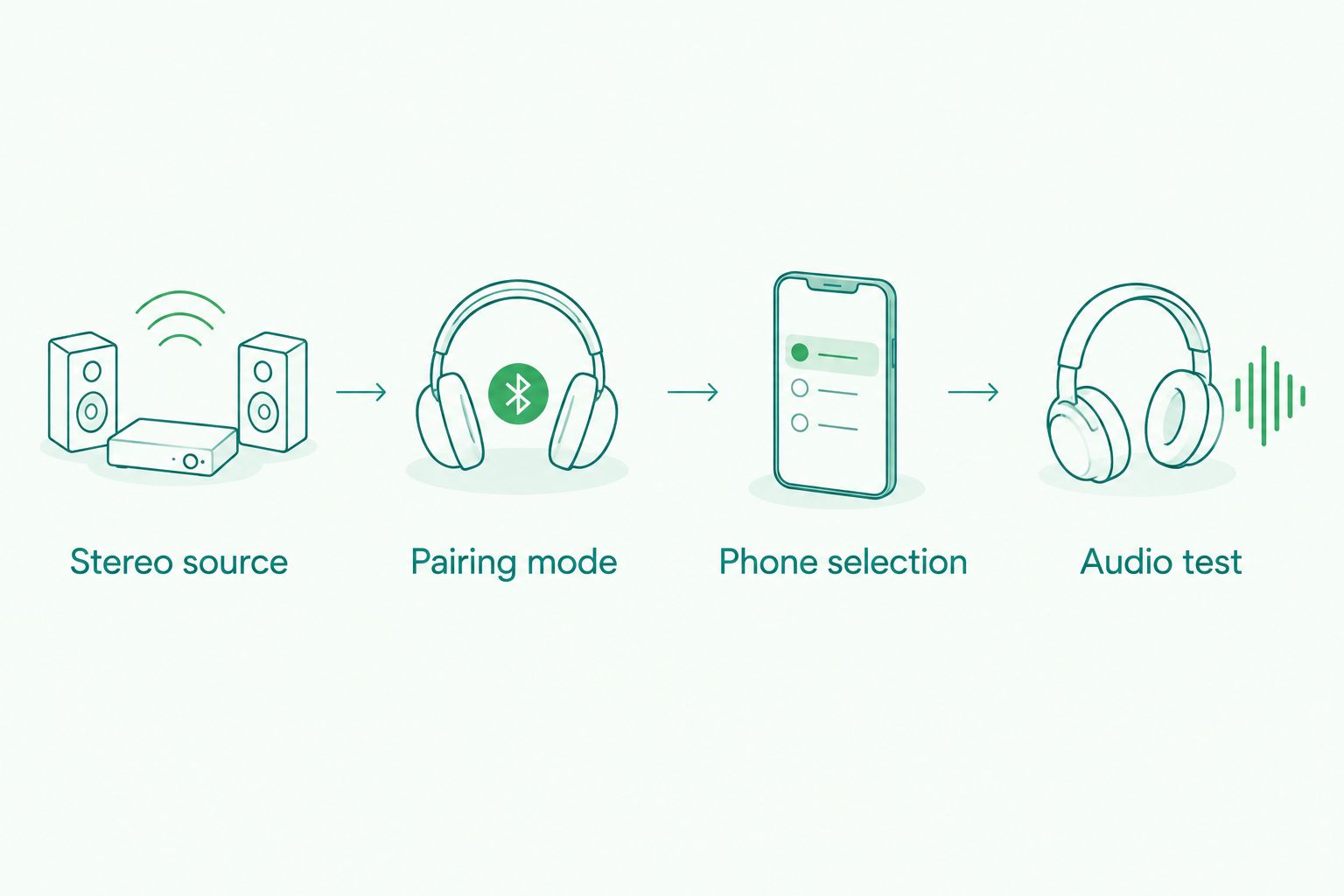
Find the stereo on your phone
Use the phone path that matches your device. Menu names on Android vary by manufacturer; the labels below describe a common Android settings path, not a promise that every phone has identical screens.
| Phone | Open Bluetooth settings | Select the stereo | Main limitation |
|---|---|---|---|
| iPhone | Open Settings > Bluetooth and turn Bluetooth on. | Tap the stereo's displayed name when it appears under available devices. | The phone can pair successfully while playback remains routed elsewhere. |
| Android | Open Settings > Connected devices > Pair new device, where those labels appear. | Tap the stereo's displayed name in the available-device list. | Menu labels and media-audio controls vary by phone. |
Complete the pairing prompt
- Find the stereo name shown in its manual or on its display. Select that matching name on your phone. Do not choose a nearby device just because it appears first.
- If either screen asks you to confirm a matching code, check that the displayed codes agree and accept the prompt. If the stereo manual calls for a pairing code, use the code specified there; do not guess one.
- Wait for the phone to show a connection and for the stereo to leave pairing mode or show a connected state. If the stereo connects to a different phone instead, disconnect that phone and repeat the selection.
- Keep the Bluetooth settings screen open for the first playback test. It makes it easier to see whether the connection drops as soon as audio starts.
Expected result: Your phone lists the stereo as connected, and the stereo indicates a connected Bluetooth device. That confirms a connection, not speaker output. Test the audio next.
If the stereo never appears, return to its pairing screen before changing phone settings. A stereo that is already connected to another phone might not present itself as an available device. A stereo that has Bluetooth audio but uses a different pairing procedure also needs its model-specific instructions; repeated taps on your phone will not put the receiver into pairing mode.
Route audio and test the speakers
- Start an audio track on the phone. Set the phone's media volume to an audible level, then bring up the stereo volume gradually. Keep the initial level comfortable so a successful connection does not produce an abrupt blast through the speakers.
- Confirm that the stereo still shows its Bluetooth audio source. Pairing can succeed while the head unit remains on radio or another input.
- If sound plays from the phone, open the phone's playback-output control and select the stereo. On Android, check the connected device's media-audio setting if that control is available. Phone interfaces differ, so use the output picker that appears during playback.
- Listen at more than one speaker position if your system has separate zones or speaker controls. If one area works and another does not, the Bluetooth link is working; investigate the stereo's zone, fade, balance, and amplifier settings instead.
Expected result: Audio from the phone comes through the boat speakers, and pausing the track on the phone stops that audio. That playback check is stronger evidence than a connected-device icon alone.
If the track plays through the boat speakers but sounds weak or distorted, stop treating it as a pairing problem. Check the phone's media level, the head unit's settings, and any visible amplifier fault indicator. Do not assume a new Bluetooth receiver will fix a speaker or amplifier fault. Auto Sound Cape Coral handles marine stereo installation for local owners who need the system checked beyond the phone connection.
Get marine stereo help
Ask about a marine stereo connection or installation for your boat.
Connect a different phone to the same stereo
Connecting a second person's phone is a separate workflow, not a reason to erase your whole Bluetooth list immediately. The stereo's capacity for remembered devices and its rules for switching between them depend on its model.
- Pause playback on the currently connected phone. Disconnect it from the stereo in that phone's Bluetooth settings, or temporarily turn off that phone's Bluetooth.
- Put the stereo back into pairing mode using its own controls. Confirm that it is ready for a new device rather than simply waiting for the previous phone to reconnect.
- On the other phone, open its Bluetooth settings and select the stereo's displayed name. Confirm any matching-code prompt on both screens.
- Select the stereo's Bluetooth audio source and play a track from the new phone. Check the playback output on that phone if its speakers play instead.
Expected result: The new phone supplies the audio heard through the boat speakers. If the original phone takes over again, disconnect it and consult the stereo manual for its device-switching or connection-priority settings. Do not delete every stored pairing unless the manual or troubleshooting result calls for it.
| Workflow | Best for | Advantage | Limitation |
|---|---|---|---|
| Reconnect a previously paired phone | Your usual phone on the boat | Avoids repeating initial pairing when the stereo reconnects normally. | Another remembered phone can take the active connection. |
| Pair a different phone | A guest or another regular operator | Lets you change the audio source phone. | You need the stereo's pairing control and might need to disconnect the first phone. |
The distinction matters in 2026 because a phone listed as remembered is not necessarily the phone sending music now. Check the active connection and the playback output, not just the saved-device list. If you regularly switch phones, find your stereo's documented device-switching control and use it instead of clearing pairings after every trip.
Troubleshooting a connection that fails
The stereo does not appear in the phone's device list
Return the stereo to pairing mode and search again. Check that it is powered on and that another phone has not already connected. If your model has a separate pairing command, selecting Bluetooth audio alone will not replace that command.
The phone says connected, but there is no sound
Play a track, select the stereo as the phone's playback output, and select Bluetooth audio on the head unit. Then raise media volume on the phone and stereo gradually. If the stereo shows a connection but another source is selected, fix the source before deleting the pairing.
Music stops when a different phone comes aboard
Look for a second phone that has automatically connected to the stereo. Disconnect that phone, reconnect the phone you want to use, and test playback. Check the stereo manual for its connection-priority controls if this happens repeatedly.
Pairing fails after an earlier connection worked
Remove the stereo from the phone's saved Bluetooth devices, then clear the phone's pairing from the stereo if the manual provides that option. Restart pairing from the stereo and select it again on the phone. This resets the relationship between those devices; it does not diagnose a speaker or amplifier problem.
The stereo plays audio, but a speaker stays silent
Bluetooth is delivering audio if another speaker plays the same track. Check zone selection, fade, balance, and any amplifier fault indication. Stop changing phone settings once the problem is isolated to part of the boat's audio system.
Customize your workflow
Once playback works, save the steps that matter for your particular head unit: where its pairing command lives, how it switches connected phones, and which source label starts Bluetooth audio. Keep the stereo manual accessible. A short note about its controls beats rediscovering pairing mode while you are ready to leave the dock.
For a boat with multiple listening areas, test the audio in each area with the same track before adjusting sound settings. If one zone stays quiet, inspect its controls separately from the Bluetooth connection. If the head unit, speakers, or amplifier need changes, start with the installation layout rather than replacing the phone pairing.
If you are choosing a different setup in 2026, keep the purchase decision separate from this connection test. A stereo that will not pair, a phone that sends audio to the wrong output, and an amplifier with a fault are different problems. Auto Sound Cape Coral provides marine stereo installation locally; describe which check failed when you ask about service. For equipment options, see the marine stereo systems guide.
FAQ
How do I connect a marine stereo to my phone through Bluetooth?
Put the stereo in pairing mode, select its displayed name in your phone's Bluetooth settings, then select Bluetooth audio on the stereo and test playback. Pairing alone does not confirm that music is routed to the boat speakers.
Why is my marine stereo connected to my phone but not playing music?
The phone can be connected while the stereo is on a different source or the phone is sending audio elsewhere. Play a track, select the stereo as the phone's output, and check the stereo's Bluetooth audio source and volume.
Where is the Bluetooth pairing button on a marine stereo?
The pairing control depends on the stereo model. Check its Bluetooth menu, a labeled button, or the manual; selecting the Bluetooth audio source does not put every model into pairing mode.
Can I connect a different phone to a marine stereo?
Yes, if the stereo supports Bluetooth pairing, put it in pairing mode and select it from the other phone. Disconnect the phone currently using the connection first if the stereo keeps reconnecting to it.
Why can't my phone find the boat stereo?
The stereo must be powered on and discoverable before it appears in the phone's available-device list. Return it to pairing mode and check whether another phone already holds the connection.
Should I erase every Bluetooth device when pairing fails?
No. First check pairing mode, the active phone, and the stereo's selected source. Remove the affected phone's saved pairing and pair it again only if those checks do not resolve the problem.
Does a connected Bluetooth icon mean the boat speakers work?
No. A connected icon confirms a device connection, not successful playback through every speaker or zone. Play audio and listen to the output before diagnosing the installation.
One last thing
In 2026, test the source before you reset the pairing. A phone can connect correctly while the stereo stays on radio or USB. If Bluetooth audio plays through some speakers but not others, leave the phone alone and check the boat's zone and speaker controls.